Summarize with AI:





Setting Coordinate Origin Point
Before exporting the various manufacturing data, make sure that you have set a correct zero reference point. Usually the lower left corner is used, rarely the upper left.
To set the zero reference point in Altium, click on “Edit” -> “Origin” -> “Set” in the menu bar.
Exporting Gerber
To export Gerber files from Altium, follow these steps:
1. Select the PCB design (.PcbDoc) you want to export in the Altium project data sidebar.
2. Click on “File” -> “Fabrication Outputs”.
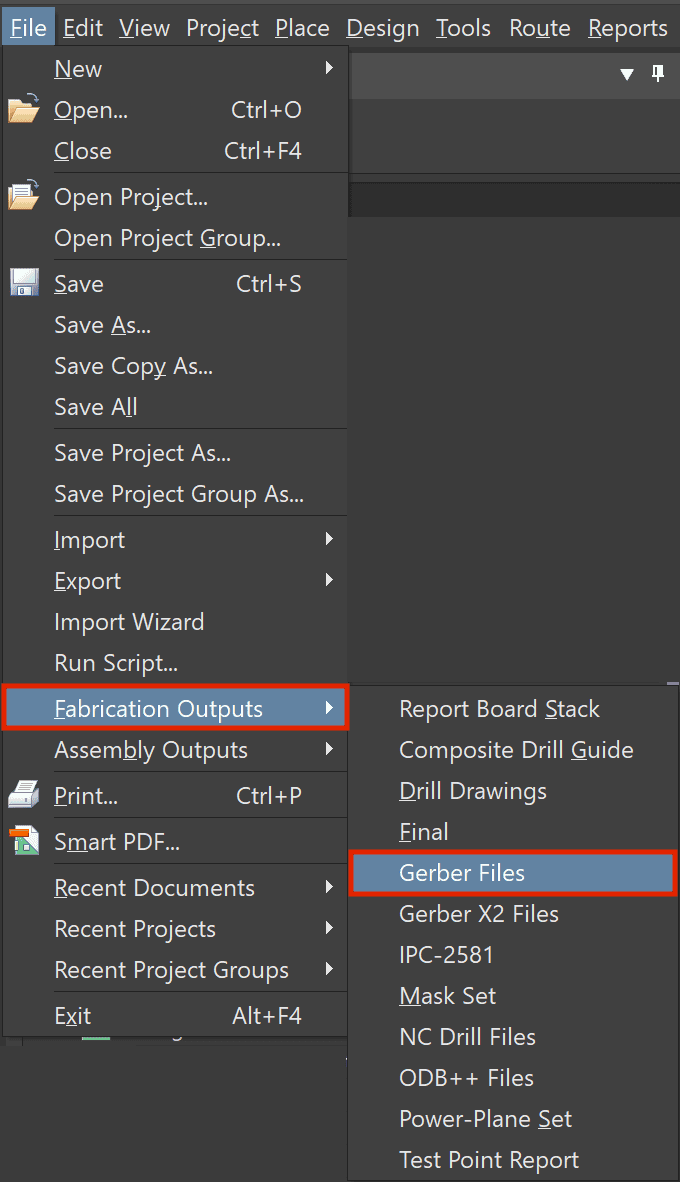
3. Click on “Apply” and the Gerber data will appear in the Altium project data sidebar under “Generated” -> “CAMtastic! Documents” or in the file explorer of your operating system under “Project Outputs for...”.
Exporting Parts list (BOM)
To export the parts list (BOM) from Altium, follow these steps:
1. Open the project for which you want to export the BOM in the Altium project data overview.
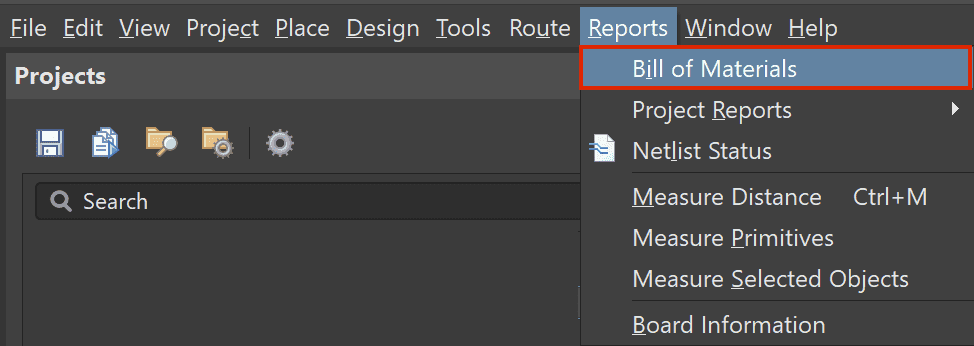
2. Click on “Reports” -> “Bill of Materials” in the menu bar.
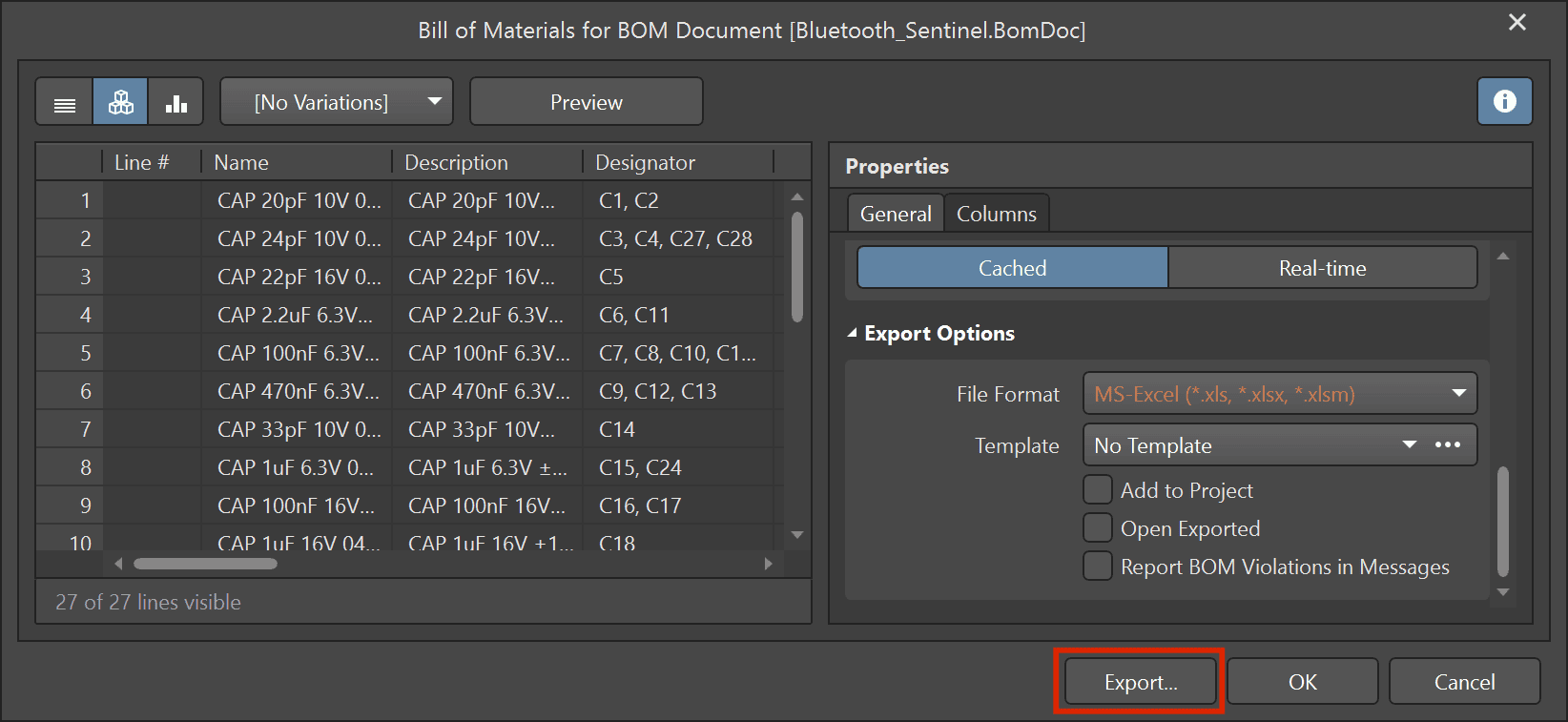
3. Keep the file format set to “MS-Excel”
4. Click on ‘Export…’ and select the desired output directory and a file name.
Exporting Component Placement (CPL)
To export Component Placement (CPL) in Altium, follow these steps:
1. Select the PCB design (.PcbDoc) for which you want to export the CPL in the Altium project data sidebar.
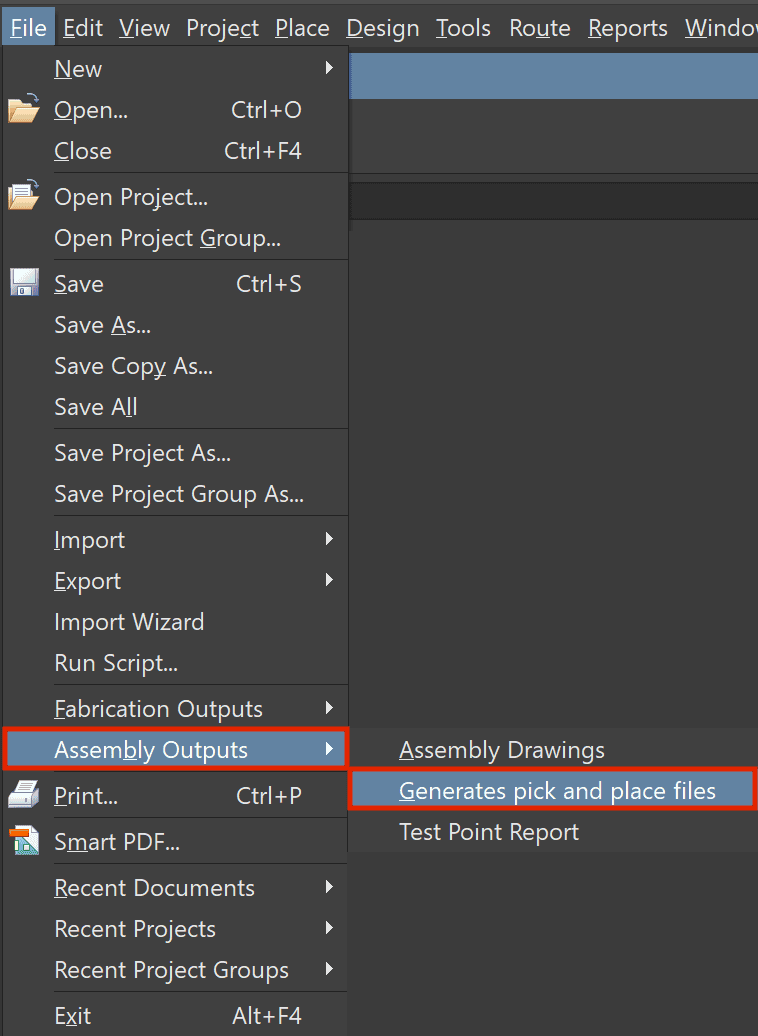
2. Click on “File” -> “Assembly Outputs” -> “Generate pick and place files” in the menu bar.
3. Select “Metric” as the unit under Output Settings.
4. Select “CSV” as the format under Output Settings.
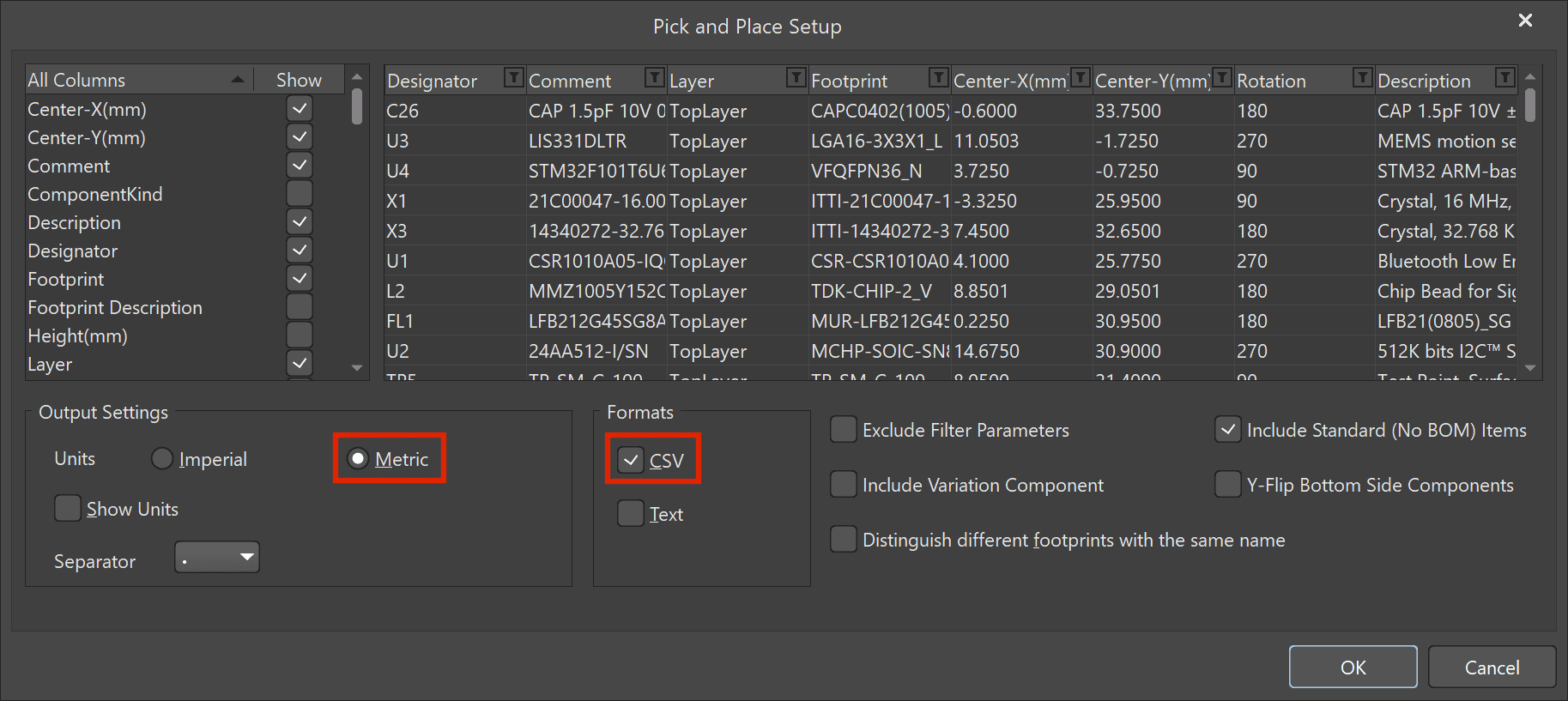
5. Click “OK” and the CPL data will appear in the Altium Project Data Overview under “Generated” -> “Text Documents” or in the file explorer of your operating system under “Project Outputs for...”.
Others also liked: